
Resources
IC-7300 Settings and Windows Driver
IC-7300 Settings and Windows Driver
Radio Settings for Digital Modes
This page describes how to adjust the settings on the IC-7300 to use digital modes like FT8, JS8, or Winlink. To make it convenient to switch between digital and voice, we use an SD Card to save the settings and load them up when needed.
So before doing anything, let’s backup the current settings in case something goes wrong:
-
Insert an SD Card in the radio.
-
Go to MENU →
SD Card -
The first time,
Formatthe card. This will erase everything on the card. -
Press
Save Setting→New File→ Pick a file name.
Later on, these settings can be applied using the Load Setting option.
Connector Settings
Now that the settings are backed up, lets tweak a few things.
VA7FI has the following settings on his radio. The settings in light grey are there for reference only and can be different, but the settings in black should probably match.
| Column 1 | Column 2 | Column 3 |
|---|---|---|
| Digital | Voice | |
MENU → SET → Connectors: | MENU → SET → Connectors: | MENU → SET → Connectors: |
| ACC/USB Output Select | AF | AF |
| ACC/USB AF Output Level | 40% | 50% |
| ACC/USB AF SQL | OFF (Open) | OFF (Open) |
| ACC/USB AF Beep Speech… Output | OFF | OFF |
| ACC/USB IF Output level | 50% | 50% |
| ACC MOD Level | 50% | 50% |
| USB MOD Level | 35%‒40%1) | 50% |
| DATA OFF MOD | MIC/ACC | MIC/ACC |
| DATA MOD | USB | USB |
MENU → SET → Connectors → CI-V: | MENU → SET → Connectors → CI-V: | MENU → SET → Connectors → CI-V: |
| CI-V Baud Rate | Auto | Auto |
| CI-V Address | Note it | N/A |
| CI-V Transceive | ON | ON |
| CI-V USB→Remote Tx Address | N/A | N/A |
| CI-V Output (for ANT) | OFF | OFF |
| CI-V USB Port | Link to [REMOTE] | Link to [REMOTE] |
MENU → SET → Connectors: | MENU → SET → Connectors: | MENU → SET → Connectors: |
| USB Serial Function | CI-V | CI-V |
MENU → SET → Connectors → USB SEND Keying: | MENU → SET → Connectors → USB SEND Keying: | MENU → SET → Connectors → USB SEND Keying: |
| USB SEND | RTS | OFF |
| USB Keying (CW) | OFF | OFF |
| USB Keying (RTTY) | OFF | OFF |
| Inhibit Timer at USB Connection | ON | ON |
Filter Settings
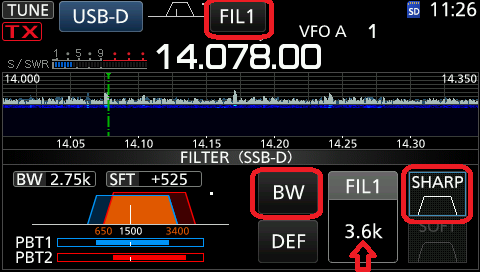
Next, we adjust the filter width:
-
Press the
FIL1(orFIL2orFIL3) button at the top of the screen (above the frequency) and selectFIL1. -
Press and hold
FIL1(yes, the same button as before). -
Press the
BWbutton and turn theVFOknob until it says “3.6k” -
Then turn the inner and outer
TWIN PBTknobs (top left) to adjust the boundaries to 600 and 2600 (even though the picture shows 650 and 3400).2) -
Optionally, press
FIL1again to also customizeFIL2andFIL3in the same fashion. -
When done, press the MENU button and select the screen you usually like to see (
SCOPE,METER, etc)
Digital and Voice settings
Let’s now set settings that will be specific to the voice and digital modes.
Start by adjusting all the settings in the Voice column:
| Mode | Digital | Voice |
|---|---|---|
| Defaut Frequency | 7.078.00 USB-D | 3.729.00 LSB |
| MUTI (select and turn the knob) | MUTI (select and turn the knob) | MUTI (select and turn the knob) |
| RF POWER | 30% | 100% |
| MIC GAIN | 40% | 40% |
| COMP | N/A | ON 4 |
| MONITOR | ON 12% | OFF 12% |
| FUNCTION | FUNCTION | FUNCTION |
| P.AMP ATT | OFF | OFF |
| AGC | OFF | MID |
| NOTCH | OFF | OFF |
| NB | OFF | Depends |
| NR | OFF | Depends |
| IP+ | OFF | OFF |
| VOX | OFF | OFF |
| COMP | N/A | ON |
| 1/4 | OFF | WIDE |
| MONI | ON | OFF |
- Now save the settings to the SD Card and call the file
1Voice
Before we set the digital settings, move on to the next section and come back here after.
ACG Adjustments
For digital modes, we don’t want any ACG:
-
Pick a clear frequency.
-
Press FUNCTION button.
-
Press and hold the
AGCbutton. -
Select the
FASTbutton and turn the VFO knob until it readsOFF. -
Optionally, set the
MIDto 0.3s and theSLOWto 2.0s. -
Press MENU and select
SCOPE, orMETER, or …
Now that the ACG is set, go back to the previous section and apply the settings in the Digital column. When complete, save to the SD card under the name 2Digital.
Loading Settings
To load the settings: MENU → SET → SD Card → Load Setting → 1Voice or 2Digital → ALL → YES and restart.
IC-7300 Windows Driver
Before connecting the radio the computer, the driver needs to be installed:
-
Search for “ic-7300” on the Icom website
-
Download the latest
USB Driver-
Click on the link in the
Model Namecolumn -
Scroll down to the bottom of the next page
-
Check the
I have readbox and Download
-
-
This should have downloaded a file named
CD-301501-00x.zip -
Unzip it (Extract) and run
CD-301501-004\Driver\Win10\CP210xVCPInstaller_x64.exe
Your computer may request to reboot (or not). Once done, you should see the following in your Device Manager: 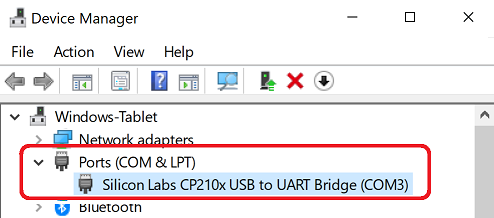
References
Note 1
Change the USB MOD Level to adjust the ALC, which should be about 2/3 in the red when transmitting.
Note 2
The filter boundaries can be tweaked anytime on the fly to filter out unwanted signals at the edge of the band. This is useful if say you’ve got strong RTTY signals activating your AGC, thus reducing the strength of the signals you’re interested in.