
Resources
Using Jitsi
Using Jitsi
We’ve been testing Jitsi for video chat because of the unlimited time it offers compared to Zoom. Here are a few tricks we’ve learned so far.
On a Computer:
-
You don’t need to download anything since Jitsi runs straight from the browser.
-
Jitsi seems a bit CPU-hungry so you should close all other programs during the meeting.
-
Use headphones instead of the laptop’s speaker to helps reduce feedback for others.
Getting Started
-
In your browser, type the URL we emailed you and enter the password when prompted, then confirm which camera and microphone you want to use.
-
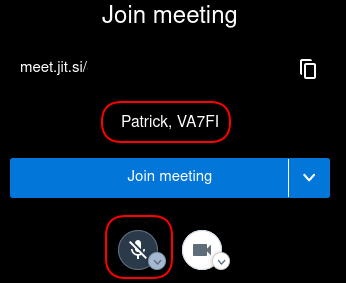
Before joining the meeting:, enter your name and callsign, and put yourself on mute.
During The Meeting
-
Stay muted unless you’re the one talking to reduce the amount of background noise / feedback.
-
We’ll also be using the “raise hand” function if we need to vote on anything.
-
To see the control buttons, move your mouse and they’ll appear at the bottom of the screen.

On a Mobile Device
-
Download the Jitsi app instead of using the browser.
-
We’ve notice some devices create a lot of feedback when using the device’s speakers so headphones are a must.
Getting Started
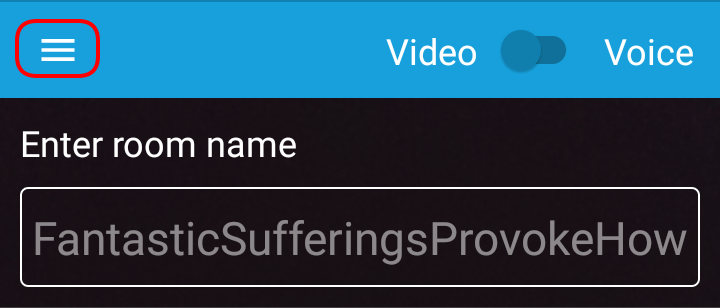
- Open the app, and click on the the three horizontal lines on the top left corner.
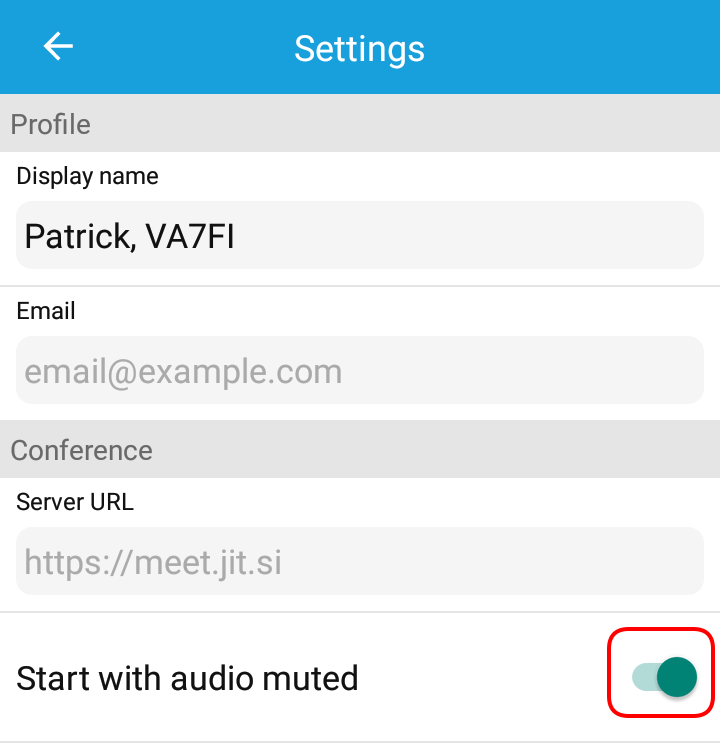
- Add your name and callsign and
Start with audio muted.
- Back at the previous screen, enter the name of the room.
During the meeting
-
Stay muted unless you’re the one talking to reduce the amount of background noise / feedback.
-
To access the buttons, tap anywhere on the screen and you’ll see this (from left to right):
-
Change your name and callsign
-
Mute / Unmute
-
Hangup
-
Turn camera on and off
-
Settings
-

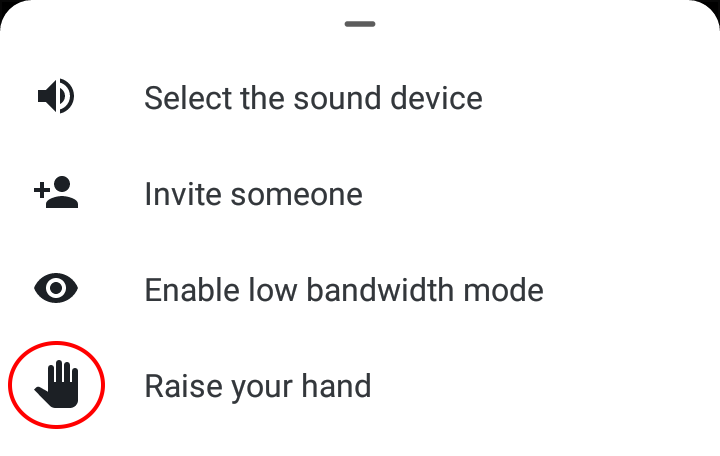
- In the Settings is where you can raise your hand.
- Pro-tip: turn your mobile device sideways so everyone can see you in landscape instead of portrait.