
Resources
Repeaters
MeshCore ‒ Part 2
This is the second part of the Meshcore Guide. See the first part here.
Repeaters
-
Install a repeater like the SenseCAP Solar Node P1-Pro from Seeed Studio or RobotShop
-
Use an antenna like:
-
Use the shortest cable possible, like:
Installing the Bootloader for the First Time.
This step is required to be able to perform future updates over-the-air (OTA) via Bluetooth. It is not required for (or compatible with) ESP32 devices like the Heltec V or T beam.
If you already have MeshCore installed (but not the bootloader), download your current settings:
-
Connect your device to your computer with a USB cable.
-
Click on “
Connect” -
Click on “
Export” -
Click on “
Disconnect” -
Locate the “
.json” file (probably in your Downloads folder).
Download the bootloader:
-
Select your device
-
Select “
Repeater” (or “Room Server”) -
Click on “
Download” -
Select the “
*bootloader-x.x.x-OTAFIXx.x.uf2” file -
Locate the “
.uf2” file (probably in your Downloads folder).
Copy the bootloader over to your device:
-
Connect your device to your computer with a USB cable.
-
Double-click on the reset button.
-
Open the drive that just mounted on your computer
-
Copy the “
.uf2” file to the drive. -
The drive may close on its own right away. This is normal.
Flash the MeshCore Firmware:
-
Select your device
-
Select “
Repeater” (or “Room Server”) -
Select “
Enter DFU Mode” -
Select “
Erase Flash” -
Select “
Flash”
Re-upload your settings:
-
Select “
Configure via USB” from the previous page, or navigate to https://config.meshcore.io/ -
Select “
Connect” -
Select “
Import” -
Select your “
.json” file -
Scroll down to the “
Access” section and retype your “New Admin password” (it doesn’t remember it) -
Scroll down and select “
Save settings” -
Select “
Disconnect”
Updating the Firmware OTA
Set up the Over-the-Air (OTA) update app (first time only):
-
Download the “nRF Device Firmware Update” app by “Nordic Semiconductor ASA” (Android, Apple)
-
Open the “
DFU” app -
In the settings, check “
Packet receipt notification”
Perform an OTA update:
-
Using your phone’s browser, navigate to https://meshcore.io/flasher
-
Select your device
-
Select “
Repeater” (or “Room Server”) -
Select “
Download” -
Select the firmware “
zip” file (not the bootloader file)
-
-
Using the MeshCore app, log in to your repeater (or room server) using the admin password.
-
For Room Servers: go to “
Remote Management” -
Go to the “
Command Line” -
Type “
start ota”; you should get a message that says: “OK - mac: xx:xx:xx:xx:xx:xx”
-
-
Open the “
DFU” app-
Under “
File”, click “Select” to choose the firmware “.zip” file -
Under “
Device”, click “Select” and choose the device that has “DFU” in the name. If there are no devices with “DFU” in the name, select the device with “OTA” in the name. -
Under “
Progress”, click “Start” -
If you selected a device with “
OTA” in the name, the process will fail at “DFU initialization”. choose “Abort” the process and go back to the previous step, and now you should be able to select a device with “DFU” in the name.
-
See Scott Baker’s article for more information.
More Advanced: Sensors
- Install sensors.
Sunshine Coast Repeater Project
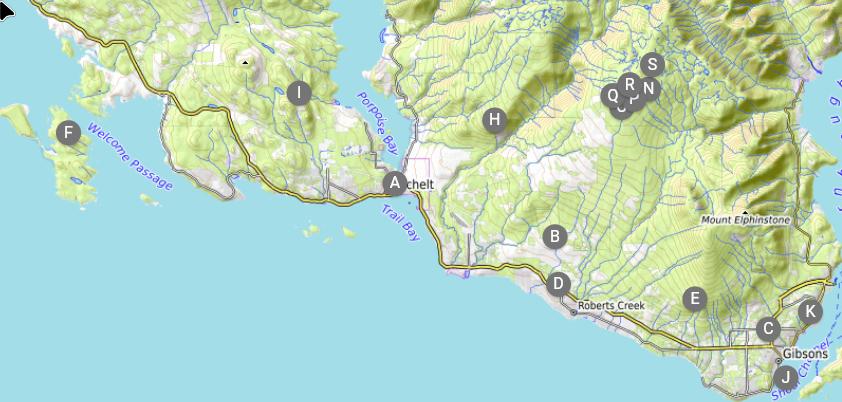 Here’s how to use MeshCore’s Antenna Coverage tool to model line-of-sight coverage:
-
Navigate to the web version of the MeshCore App
-
You don’t need to connect to an actual MeshCore device.
-
Click on ⋮ in the top right corner and then select “
Tools” -
Enter the “
Antenna Coverage” tool -
Where it says “
0 Coverage Layers”, click on ⋮ and select “Import JSON” -
Import this file
To Do
-
Edit the whole document
-
Add more details to the sunshine_coast_repeater_project section.
– [email protected] 2026/10/25 12:12
Copyright and Attribution
This document is licensed under CC BY-SA 4.0 International. The original can be found at https://scarcs/links/meshcore/home