
Resources
Echolink
Echolink
Echolink is a program that allows phones and computers to connect to a repeater or simplex radio node, or two repeaters to connect to each other over the internet. The program can run in either Single-User (client) mode or Sysop (server) mode.
Single-User
The Single-User mode is what you need to use to connect your smartphone or computer to a repeater over the internet. It’s very useful to check in to nets or connect with other hams when you’re out of reach from the repeater.
-
The Windows program can be downloaded from the Echolink Download page
-
The Android app can be found on Google Play (Click here to see Android Settings that are known to work).
-
The iOS app can be found on the App Store

In addition to downloading the right software, you’ll have to validate your callsign with EchoLink to prove that you are licensed. Also see the authentication page for more details.
Audio Levels
To adjust the Echolink levels on the app:
-
Select
*ECHOTEST* -
While the introduction is playing, adjust your phone volume so the level is comfortable: Loud enough, but not too loud that it’s distorted.
-
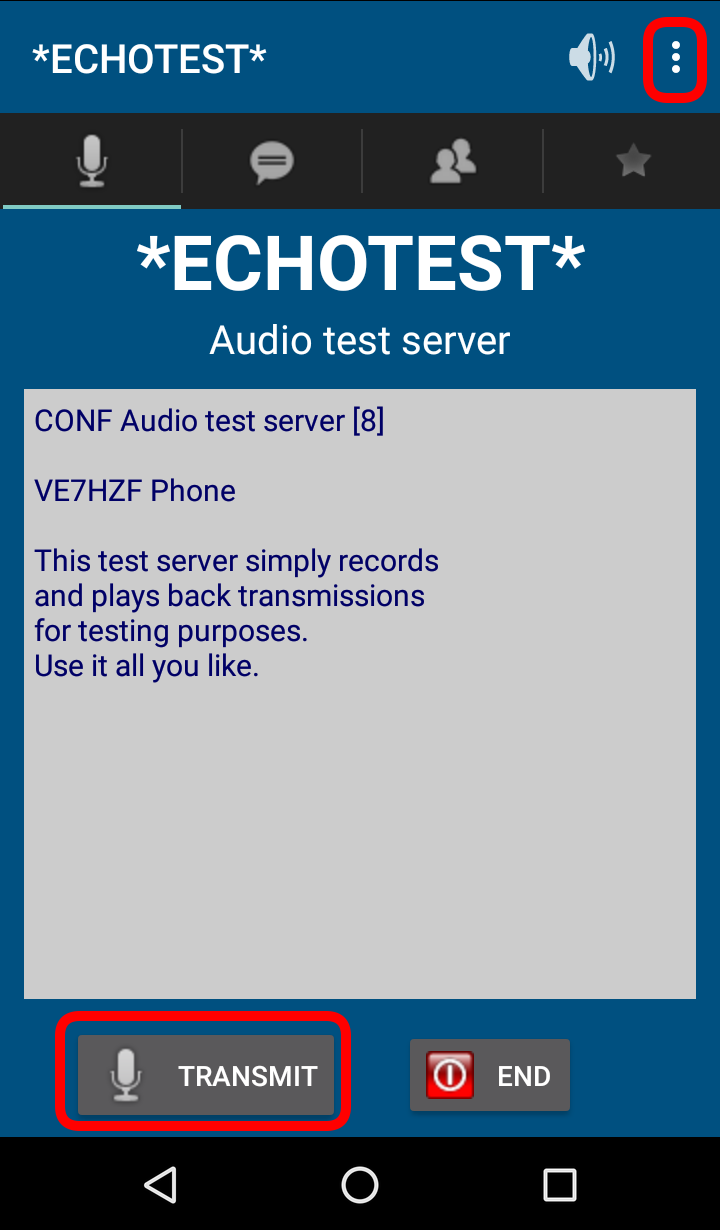
Press
TRANSMITand record a short message and press the PTT again to end. Your message will replay. -
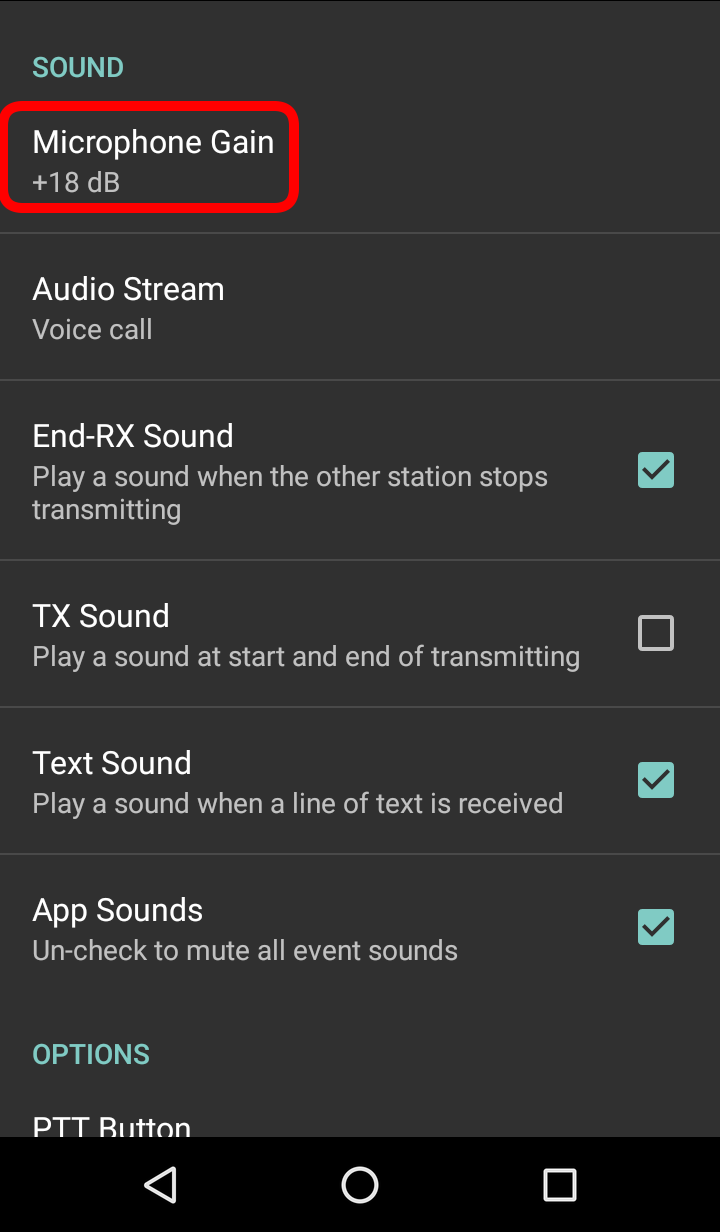
Now compare your sound level to the level of the introduction earlier. If it’s different (quieter or louder), click the three little dots on the top right corner, select
Settings, and scroll down toMicrophone Gain. Adjust higher or lower depending of the situation and retry. On my phone, I had to crank up the gain to +18 dB and my voice is still a little quiet so I know I have to speak a bit louder. Every device will be different, but keep in mind that how you hear yourself is how others will hear you. /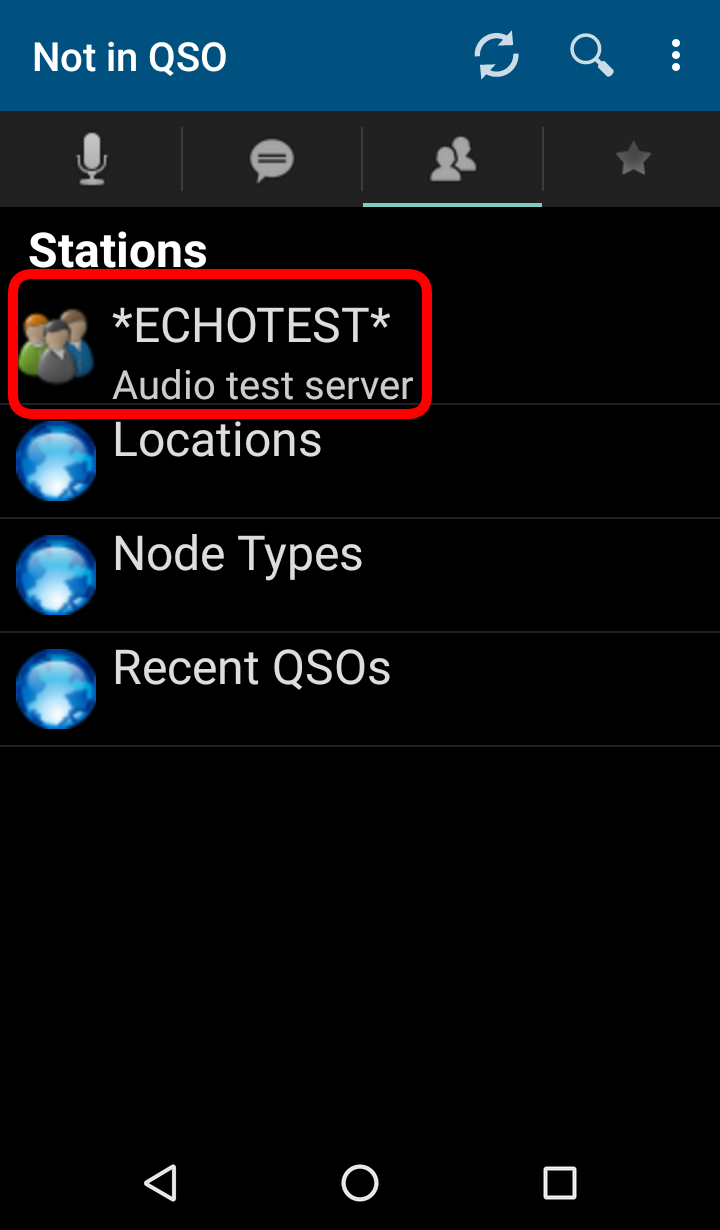
Sysop
The Sysop mode is used to interface a radio (or repeater) to the echolink system via the internet. The VE7RXZ-R node consists of:
-
Yeasu FT-2500M radio
-
A 4-element 2m yagi antenna pointed towards VE7RXZ
-
SignaLink USB unit
-
DreamQuest N95 Mini PC (512 GB HD / 16GB Ram) Windows 11 computer
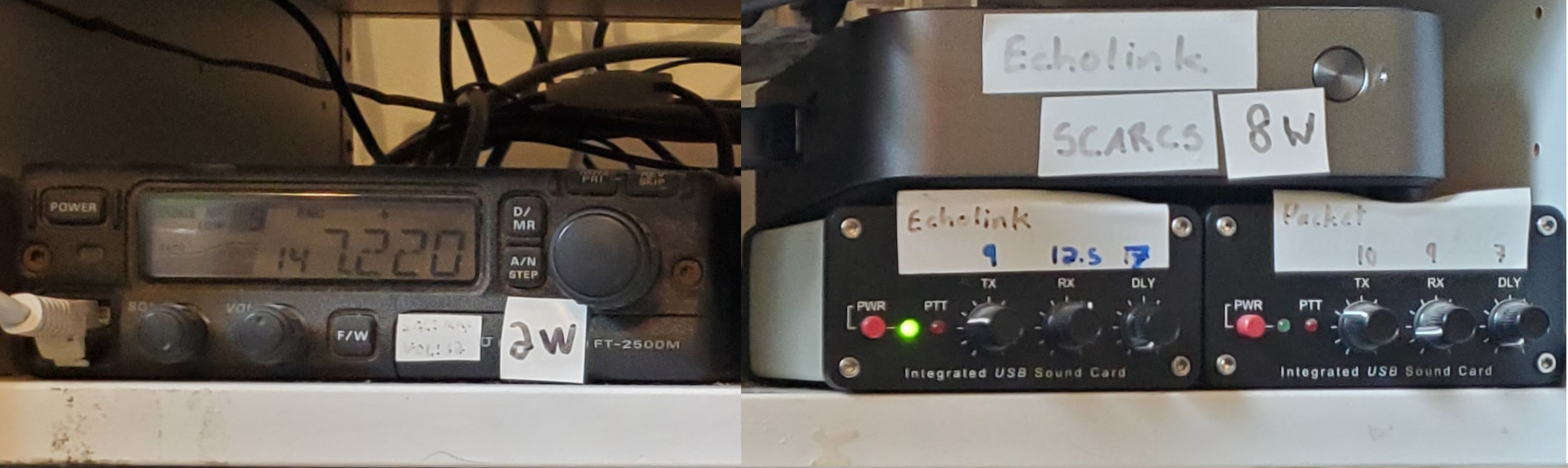 The numbers on the white tape are the “o’clock” positions of the dial in case I bump them, which I’ve done before.
Sound Configuration
Modem
- For this setup, I had to tweak the network settings of my router to allow traffic to find the Echolink computer. See more here.
Windows 10
The first step is to configure the Signalink unit properly in Windows. At first, it’ll probably show as a USB sound device, but I changed the name to “Signalink”, which is what you’ll see in the screenshots here.
-
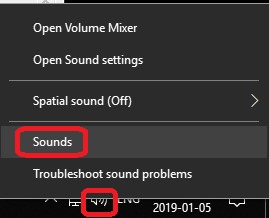
Right click on the speaker icon on the lower right corner and select “Sounds”
-
Under the
Playbacktab, I changed the name of the USB device to “Signalink”, set it as the default, and disabled all the other playback devices since this computer isn’t used for anything else than Echolink.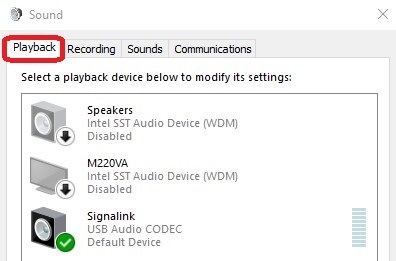
-
The levels should at
0.0 dB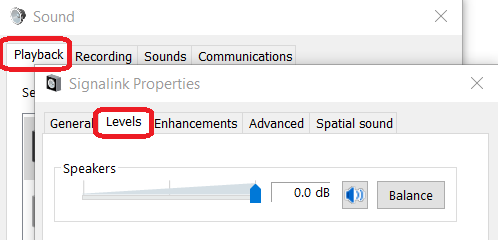
-
There should be no Enhancements
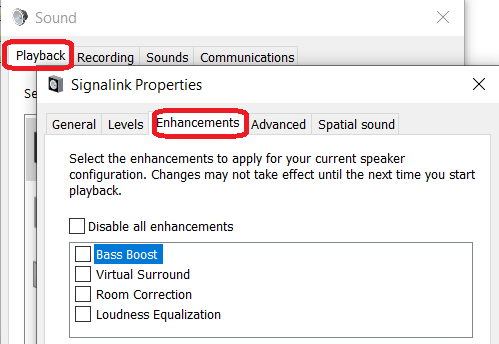
-
The audio quality can be at
FM Radio Quality.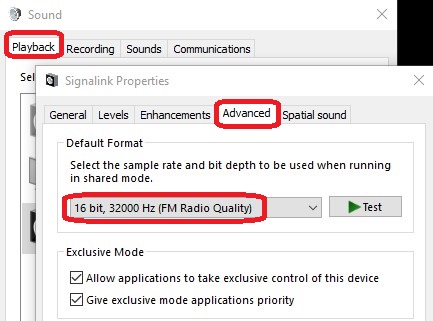
-
The
Spatial Soundsshould beOff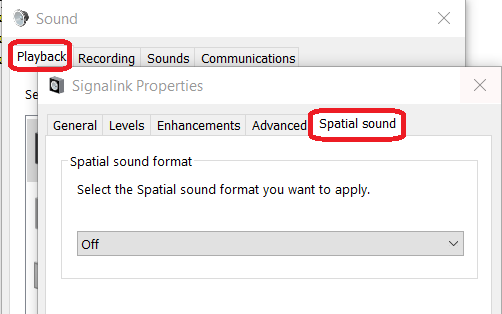
-
-
Similarly for the
Recordingtab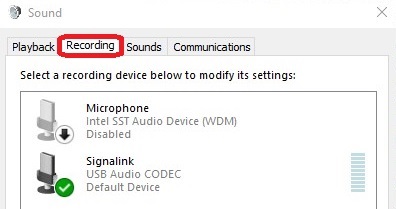
-
Levels to
0.0 dB -
Format to
1 channel, 16 bit, 11025 Hz
-
-
In the
Soundstab, I selectedNo Soundotherwise, Windows sound would be transmitted on the air. Here, if you don’t disable the other playback devices, you could simply ensure that the windows sound go to the speakers, but I wanted to keep things as simple as possible.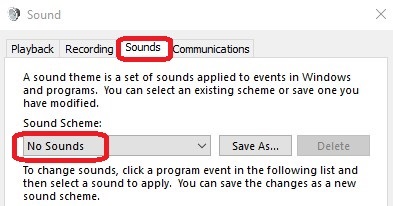
Echolink Program
-
Under
Tools→Setup...→Audio-
Also check the
300 Hz TX High-Pass Filter(which might help with the Subaudible Tone for VOX below). -
Select the Signalink devices for the Input and Output devices and click the
Calibratebutton which will change the Fine Tuning number automatically.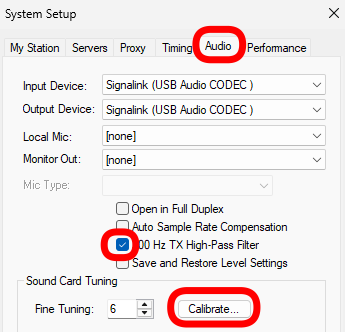
-
-
Under
Tools→Sysop Settings...→RX Ctrl, set all three delays to 0 and add theSquelch Crash Anti-Tripto50.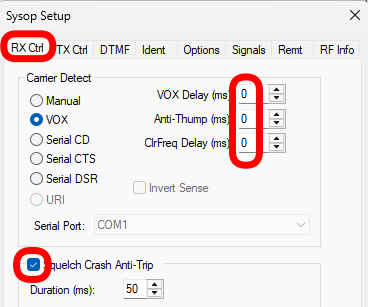
-
Under
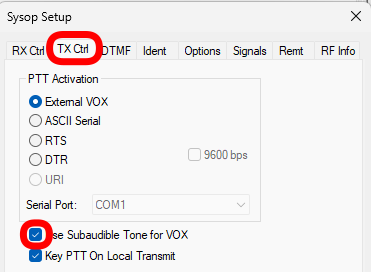
Tools→Sysop Settings...→TX Ctrl, check theUse Subaudible Tone for VOX, which will enable Echolink transmit as soon as the user taps theTRANSMITbutton on their phone, and will only stop when the tap theSTOP TXbutton, regardless of whether they are speaking or not. With this option, the delay on the Signalink device can be lowered to its minimum setting.
I found that the tone transmitted by Echolink is 77Hz, which could cause issues with the tone of the repeater. However, the 300 Hz TX High-Pass Filter might help.
-
Under
Tools→Sysop Settings...→DTMF, I also disabled the DTMF so as to not conflict with the IRLP node.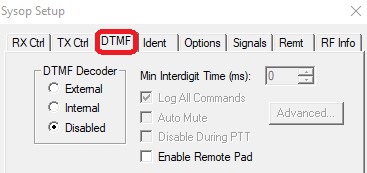
-
Finally, under
Tools→Sysop Settings...→OptionsI disabled both announcements, which can be quite disrupting. The operators themselves are responsible for id’ing.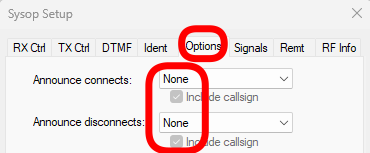
Radio and Signalink
This next part is trickier. We need to adjust the transmit and receive volumes of the rest of the equipment. To do this, we’ll need:
-
Access to the Echolink radio and Signalink
-
A second radio to listen and transmit
-
A phone with the Echolink client app.
The first step will be to adjust the receive of the echolink system.
-
On your phone, make sure the volumes are adjusted properly. Go through the steps above again to make sure the audio is good (that’ll be important for later).
-
Tune the Echolink radio to a busy frequency like one with a net for example.
-
You should now be hearing the conversations on your phone via Echolink.
-
Turn off the power of the Signalink (little red button) and roughly adjust the volume of the Echolink radio until you can hear the conversation at a good level. We’ll fine tune this again later.
-
Now turn on the power of the Signalink again and adjust the RX dial until the volume is the same as when it was off. You might have to turn it on and off a few times until you find this spot. For me, it was in the 12 o’clock position.
-
You can now leave the Signalink turned on.
-
Adjust the volume of the radio until the volume through your phone is similar to that introduction when you tested the
*ECHOTEST*on your phone. Also watch the meter on the Echolink computer to make sure that you’re not over driven. Ideally, the level should be around 2/3 or so. /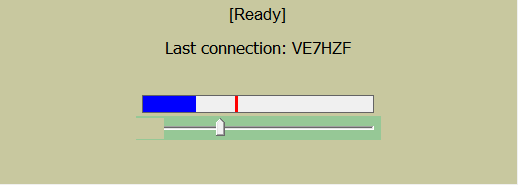
-
Also, when no-one is talking, the level should stay below the slider (which is like an audio squelch). Anytime the level exceeds this, there will be a beep on the phone and it’ll be impossible for the user to use the
TRANSMITbutton. I found that using the computer for other tasks creates “noise” that can be heard on the phone. -
Once the radio volume is set, make a note of it.
-
We’re done with this part but before we move on, tune the second radio to the net and adjust the volume to a comfortable level. This is simply to adjust the volume. We’ll be comparing the echolink volume to this later.
The final step is to adjust the Signalink TX knob:
-
Disconnect the echolink from the node and reconnect it (still on the simplex frequency).
-
Adjust the TX volume of the signalink until the volume of the announcement is similar to that of the net on the other frequency earlier.
-
You can also try talking, but depending on your phone, that volume might be weaker, which is not very reliable. The node ID is a better measure of transmit volume.
-
Make a note of the Signalink TX volume.